Automating Braze Data Ingestion to Synapse with Autoloader
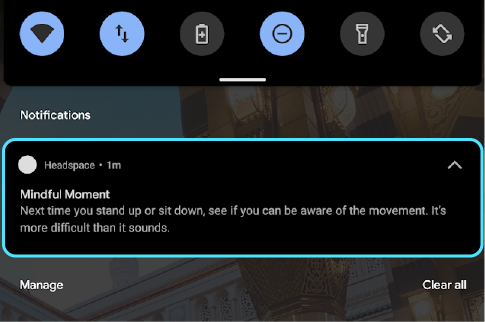
If you've never heard of Braze before, it's basically the Customer Engagement System that enables Mobile Apps like Headspace to send timely (and thoughtful) push notifications like this:
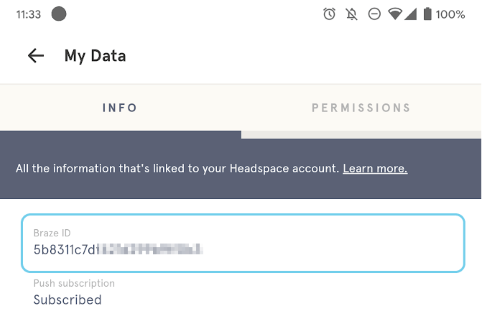
Each end-user is identified by a unique braze_id - against which Braze collects data as part of their app SDK. So for example, if you go over to Headspace - you can see your unique Braze ID:
For more information on how Braze manages it's User Lifecycle, check out this article.
Ingesting Currents data in real-time
Once data is ingested into their system via the SDK, Braze allows us to export data in real-time using an integration system called "Currents" (that actually runs Kafka under the hood). Essentially, Braze leverages Kafka Connect to serialize real-time Customer Engagement Events into .avro format, and drops those files in real-time into Azure Storage as a managed connection.
This becomes our entry point for analytics on Azure.
That's all the context we need on Braze for now - let's dive into the data side of things.
How Braze Uses Currents + Azure Pipeline
Braze recommends a 4 step process on their website on how to ingest Currents Data:
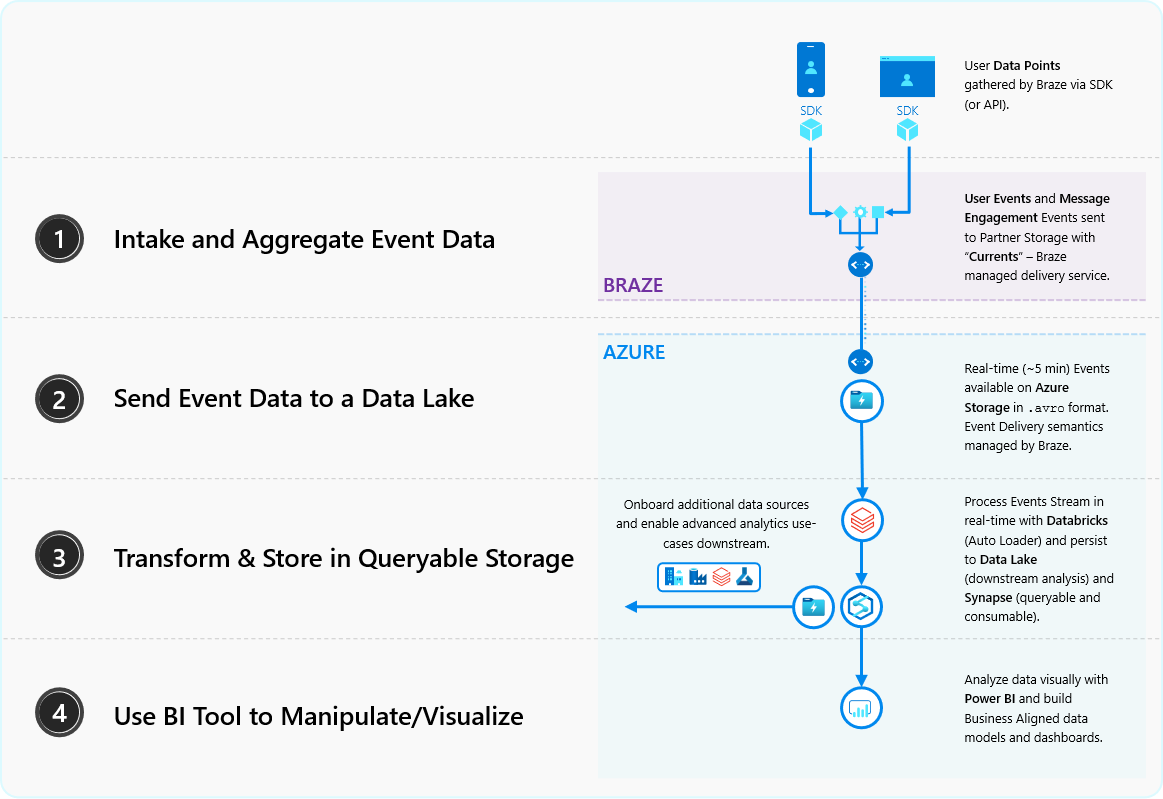
This is the blueprint we'll follow:
Step 1: Intake and Aggregate Event Data
Although we don't have access to a live Braze environment, thankfully, Braze has made their sample data available on their GitHub.
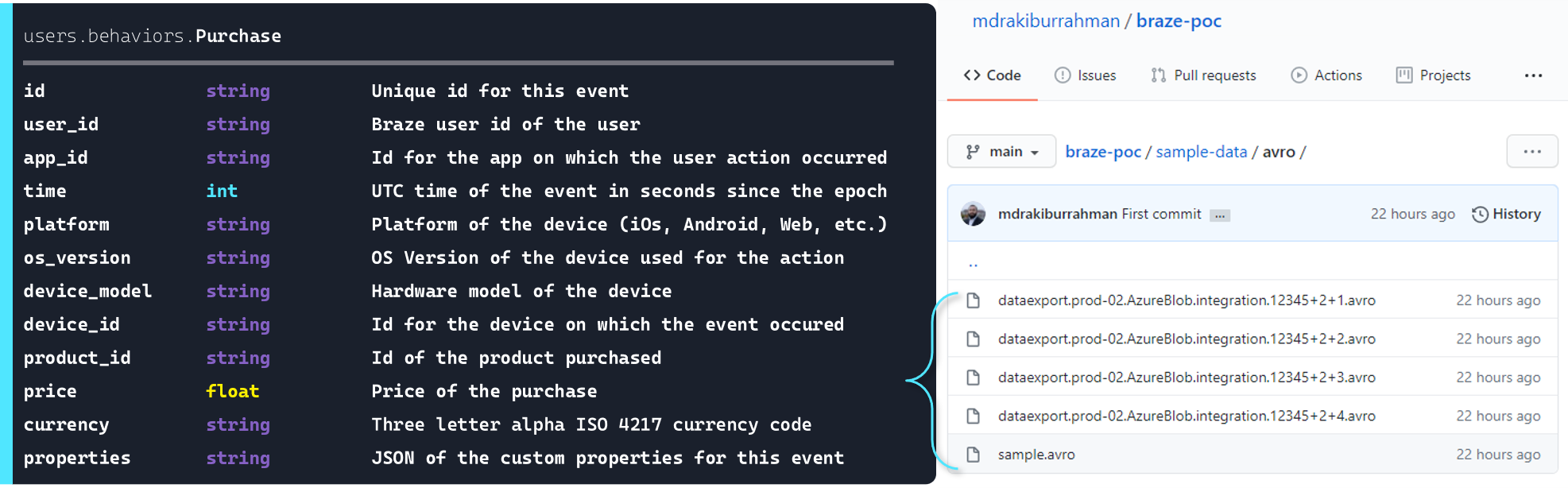
Above, I've taken the schema for Purchase table, and created 17 Unique Purchase Events spread across 4 .avro files that we can use to simulate Currents.
Step 2: Send Event Data to a Data Lake
We're going to be dropping these .avro files into Azure Storage to simulate the Currents integration according to the Braze's delivery semantics:
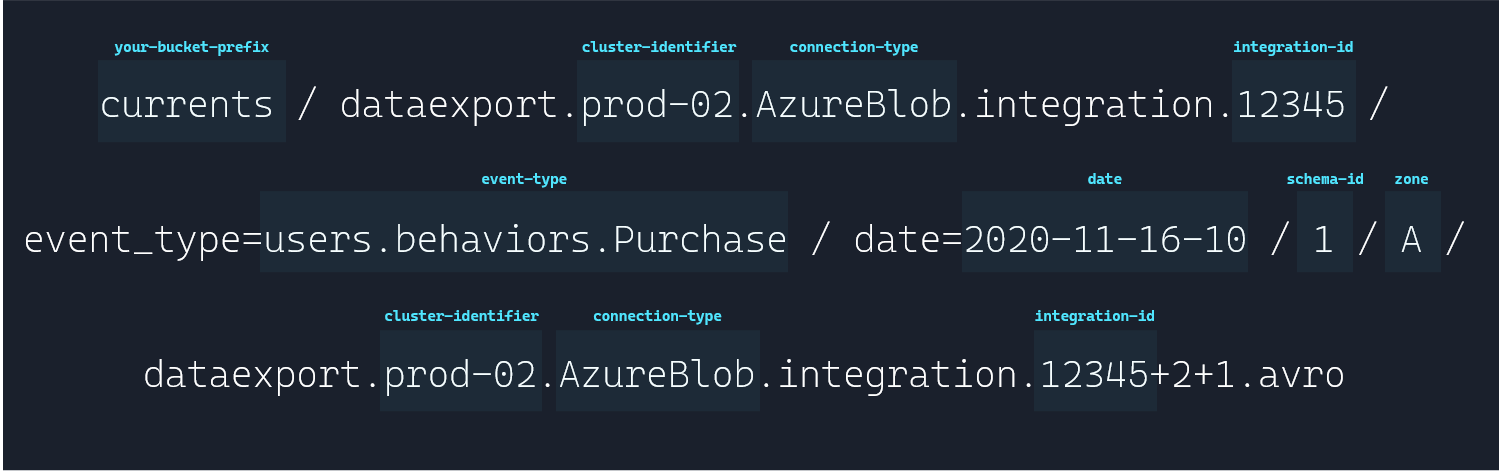
We will be dropping these files manually via Storage Explorer to simulate the Braze drops (which happen Every 5 minutes or Every 15,000 events - whichever comes first).
Step 3: Transform & Store in Queryable Storage
We will be ingesting this data using Databricks Autoloader, transforming on-the-fly on a Spark Dataframe, and storing it in Delta Tables and Synapse.
Step 4: Use BI Tool to Manipulate/Visualize
Once the data is in Synapse, we can easily point Power BI to it and spin up a dashboard.
Pre-Requisites & Environment Setup
Resource Providers
Ensure the following Resource Providers are registered on your Azure Subscription:
Microsoft.DatabricksMicrosoft.StorageMicrosoft.SynapseMicrosoft.EventGridMicrosoft.KeyVault
To register a resource provider, view step-by-step guide here.
App Registration/Service Principal
Create a Service Principal, and make note of:
clientIdtenantIdclientSecret
To register a resource provider, view step-by-step guide here.
Deploy Azure Resources
Here are the Azure services we need to deploy. Any configuration changes besides the default configurations are highlighted below as well.
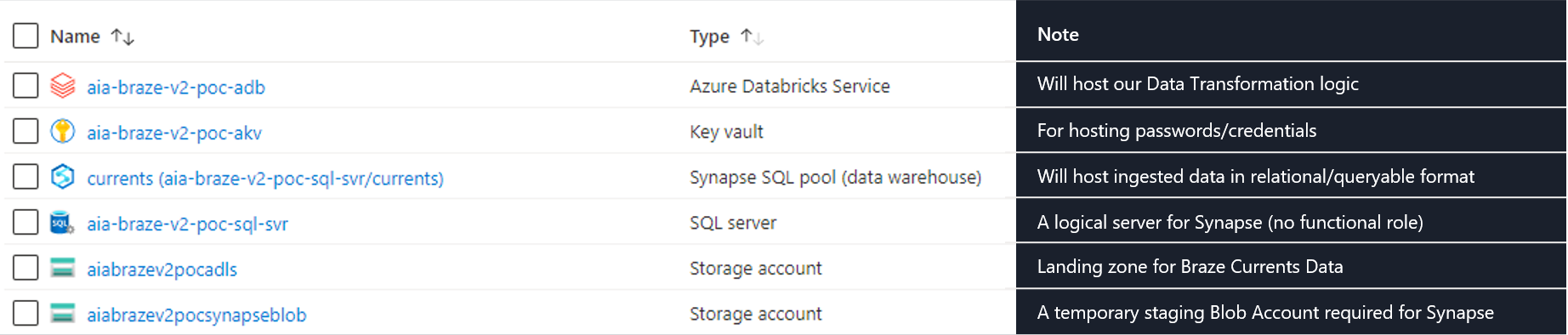
Databricks
For Databricks, we configure the Premium Tier (will be useful down the line - such as for Secrets Management).
Storage Accounts
Note that we configure 2 Storage Accounts:
- Data Lake Account - where we will be landing our Braze data
- Blob Account - as Synapse needs a regular/dedicated - i.e. Staging area for Structured Streaming.
Data Lake Account
We pick StorageV2 in Account kind, and ensure Hierarchial namespace is Enabled (will be useful down the line).
Blob Account
We pick BlobStorage in Account kind.
Synapse SQL Pool
We start with a modest Synapse Tier DW100c to start, and ensure None is selected for Use existing data.
Key Vault
We create with out-of-the-box configurations.
Configure Azure Resources
Assign Service Principal permissions
Assign the Service Principal the following permissions on our Resource Group (for it to create and configure the Event Grid):
Contributor
Note that the actual permissions required after the one time setup can be demoted to:
Contributoron our ADLS Storage Account andContributoron the Event Grid (once it's created by Autoloader - coming up)
Setup ADLS Directory Structure
We create two containers on ADLS:
landing: Where the Currents Data will landbronze: Where we will be storing our parsed Delta Table and sample schema file
We create bronze/tmp/sample.avro containing our event schema:

We also create the drop folder structure in landing:
currents/dataexport.prod-02.AzureBlob.integration.12345/event_type=users.behaviors.Purchase/

Setup Blob Directory Structure
We create a synapse container on our Blob Storage Account - and leave it empty.
Setup Key Vault Secrets
adls-storageAccount-Name: Name of our ADLS Storage Accountadls-storageAccount-AccessKey: Access Key to our ADLS Storage Accountadls-storageQueue-SAS: Shared Access Signature to manage queues on our ADLS Storage Accountblob-storageAccount-Name: Name of our Blob Storage Accountblob-storageAccount-AccessKey: Access Key to our Blob Storage Accountsp-clientId: Client ID of our Service Principalsp-clientSecret: Secret of our Service Principalsp-tenantId: Our Azure AD Tenant Idsp-subscriptionId: Our Subscription Idsp-rgName: Our Resource Group namesynapse-userName: User Name for our Synapse Accountsynapse-password: Password for our Synapse Accountsynapse-server: Server Name hosting Synapsesynapse-db: Database Name on Synapse
Cluster Setup on Databricks
We create a standard Cluster under Databricks 7.4 (Apache Spark 3.0.1, Scala 2.12, Python 3) runtime.
For this POC, we will not be requiring any special libraries.
Connect Key Vault to Databricks Secret
To create a Key Vault backed secret scope, view step-by-step guide here.
Run the following in a Databricks Notebook and ensure the secrets we configured are visible:
dbutils.secrets.list("key-vault-secrets")Import Notebooks to Databricks
We import the notebooks available on GitHub into our Databricks Workspace.
First run
We begin by running 1.pre-requisites-ingestion to mount our ADLS bronze container to /mnt/bronze.
Then, we run the following from 1.autoloader-from-currents-landing:
# ADLS
adls_account = dbutils.secrets.get(scope="key-vault-secrets", key="adls-storageAccount-Name")
adls_key = dbutils.secrets.get(scope="key-vault-secrets", key="adls-storageAccount-AccessKey")

spark.conf.set("fs.azure.account.key." + adls_account + ".blob.core.windows.net", adls_key)
spark.conf.set("fs.azure.account.key." + adls_account + ".dfs.core.windows.net", adls_key)

# Blob
blob_account = dbutils.secrets.get(scope="key-vault-secrets", key="blob-storageAccount-Name")
blob_key = dbutils.secrets.get(scope="key-vault-secrets", key="blob-storageAccount-AccessKey")

spark.conf.set("fs.azure.account.key." + blob_account + ".blob.core.windows.net", blob_key)
The above block imports the necessary connection secrets and sets the application parameters when Spark connects to our Storage Accounts.
We import the temporary avro file into a dataframe to infer the dataset schema for Autoloader:
df_tmp = spark.read.format("avro").load("/mnt/bronze/tmp/sample.avro")
dataset_schema = df_tmp.schema
This sets up the cloudFilesConf permissions object that we pass in to create the Autoloader dataframe:
queue_sas = dbutils.secrets.get(scope="key-vault-secrets", key="adls-storageQueue-SAS")

cloudFilesConf = {
  "cloudFiles.subscriptionId": dbutils.secrets.get(scope="key-vault-secrets", key="sp-subscriptionId"),
  "cloudFiles.connectionString": queue_sas,
  "cloudFiles.format": "avro",
  "cloudFiles.tenantId": dbutils.secrets.get(scope="key-vault-secrets", key="sp-tenantId"),
  "cloudFiles.clientId": dbutils.secrets.get(scope="key-vault-secrets", key="sp-clientId"),
  "cloudFiles.clientSecret": dbutils.secrets.get(scope="key-vault-secrets", key="sp-clientSecret"),
  "cloudFiles.resourceGroup": dbutils.secrets.get(scope="key-vault-secrets", key="sp-rgName"),
  "cloudFiles.useNotifications": "true",
  "cloudFiles.includeExistingFiles": "true",
  "cloudFiles.validateOptions": "true",
}
We point spark to the root path of our Purchase folder, and initiate the autoloader dataframe:
autoloader_df = (spark.readStream.format("cloudFiles")
                 .options(**cloudFilesConf)
                 .option("recursiveFileLookup", "true") # This lets us ignore folder level partitioning into the incoming Dataframe
                 .schema(dataset_schema)
                 .load("wasbs://landing@{}.blob.core.windows.net/currents/dataexport.prod-02.AzureBlob.integration.12345/event_type=users.behaviors.Purchase/".format(adls_account))
                )
Except - a date column kept getting added to the schema.
What kep happening was, because Braze's drop semantics would include this date=YYYY-MM-DD-HH bit:
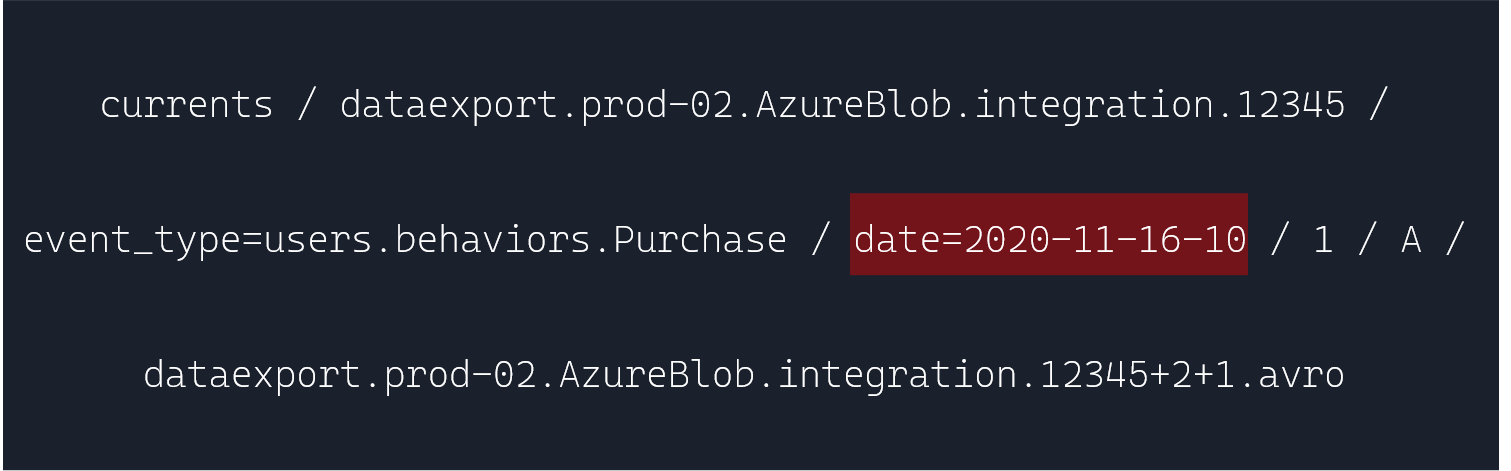
Spark would keep picking up date as a column:
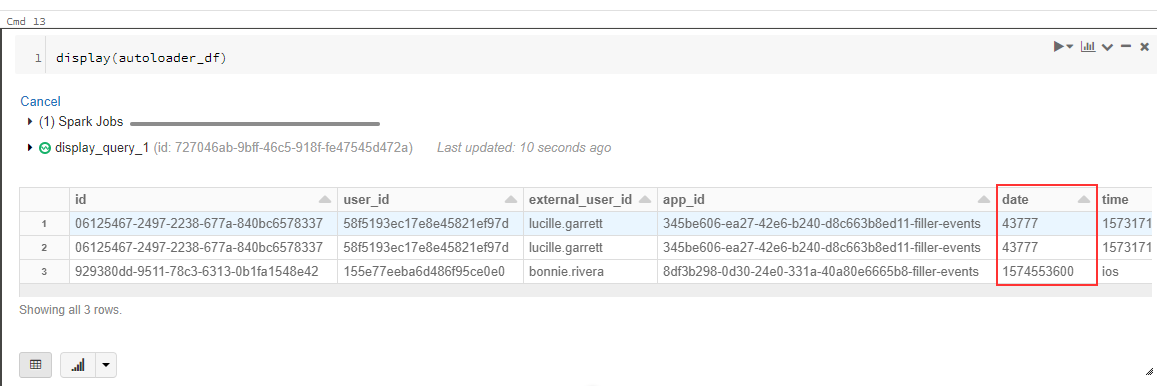
Specifying .option("recursiveFileLookup", "true") turns off Partition Inference, meaning Spark simply processes what's in the dropped .avro file.
We then proceed to insert a real timestamp for watermarking purposes instead:
autoloader_df = autoloader_df \
  .withColumn("time_inserted", current_timestamp()) \
  .withColumn("time", col("time").cast("bigint")) \
  .withColumn("price", col("price").cast("float"))
We then setup the Synapse Connector:
# Configure the write semantics for Azure Synapse connector in the notebook session conf
spark.conf.set("spark.databricks.sqldw.writeSemantics", "copy")
spark.conf.set("spark.sql.files.ignoreMissingFiles", "true")

# Set Azure Synapse Properties and Connection String
user = dbutils.secrets.get(scope="key-vault-secrets", key="synapse-userName")
password = dbutils.secrets.get(scope="key-vault-secrets", key="synapse-password")
dbtable = "users_behaviors_Purchase"
servername = dbutils.secrets.get(scope="key-vault-secrets", key="synapse-server")
databasename = dbutils.secrets.get(scope="key-vault-secrets", key="synapse-db")

jdbc_url = "jdbc:sqlserver://{}.database.windows.net:1433;database={};user={}@{};password={};encrypt=true;trustServerCertificate=false;hostNameInCertificate=*.database.windows.net;loginTimeout=30;".format(servername,databasename,user,servername,password)
And finally, kick off both streams:
(autoloader_df.writeStream
  .format("delta")
  .trigger(once=True)
  .outputMode("append")
  .option("checkpointLocation", "/mnt/bronze/currents/users.behaviors.Purchase_Checkpoints/")
  .start("/mnt/bronze/currents/users.behaviors.Purchase")
)

# Structured Streaming API to continuously write the data to a table in Azure Synapse
(autoloader_df.writeStream
  .format("com.databricks.spark.sqldw")
  .trigger(once=True)
  .option("url", jdbc_url)
  .option("tempDir", "wasbs://{}@{}.blob.core.windows.net/{}".format("synapse", blob_account, "tempDir"))
  .option("forwardSparkAzureStorageCredentials", "true")
  .option("dbTable", dbtable)
  .option("checkpointLocation", "/tmp_checkpoint_location")
  .start()
)
Due to the .trigger(once=True) above, both Streams kick off, does some "stuff" (we see below), and shut down:
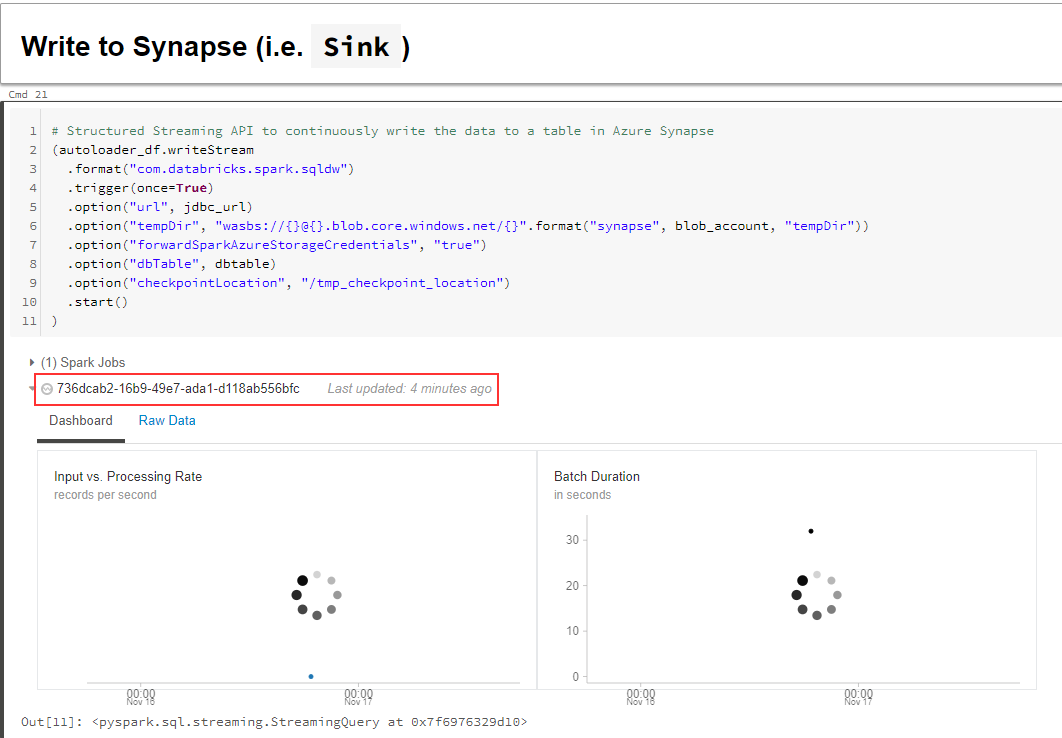
Let's look at some of the "stuff" that happened.
On our resrouce group, we see a new Event Grid get created:
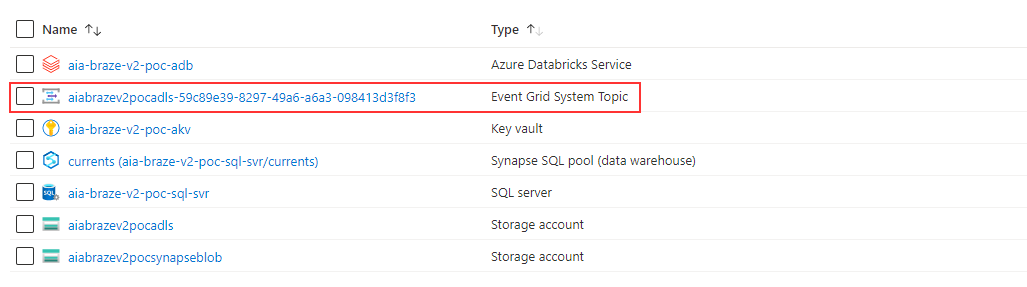
Within this Event Grid - we note 2 topics, one for our Delta Stream, the other for Synapse:

And 2 queues on our Storage Account as well:
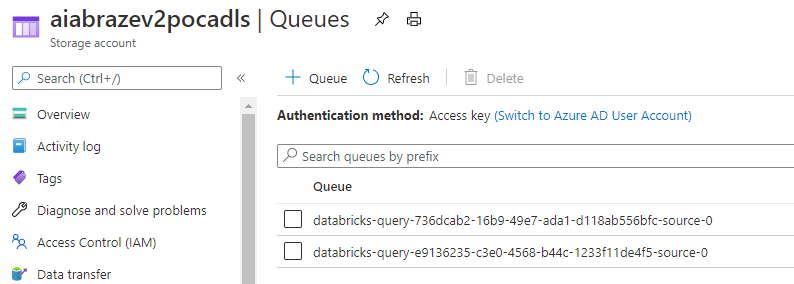
In other words - for each stream:
- A new
.avrofile is dropped (by Braze or by us) - as we'll see shortly - The Event Grid Topic watching the ADLS location grabs the location of the new file, drops it in the queue
- The queue holds this file location - until our Streaming DataFrame grabs and processes the file as part of the next microbatch, and clears the queue entry
- Rinse and repeat for the next file
Streaming demo
We register our Delta Table with the Hive Metastore by running the following in 2.bronze-table-from-delta:
DROP TABLE IF EXISTS CURRENTS.users_behaviors_Purchase;
DROP DATABASE IF EXISTS CURRENTS;

CREATE DATABASE IF NOT EXISTS CURRENTS;
USE CURRENTS;

DROP TABLE IF EXISTS users_behaviors_Purchase;
CREATE TABLE IF NOT EXISTS users_behaviors_Purchase
USING delta
OPTIONS (path "/mnt/bronze/currents/users.behaviors.Purchase")
Since our Delta Table is empty (no data dropped yet) running a SELECT returns empty result:
SELECT * FROM CURRENTS.users_behaviors_PurchaseSimilarly, before dropping a file - we query our Synapse Database and notice 2 tables - data & checkpoint - are already created (with no data):
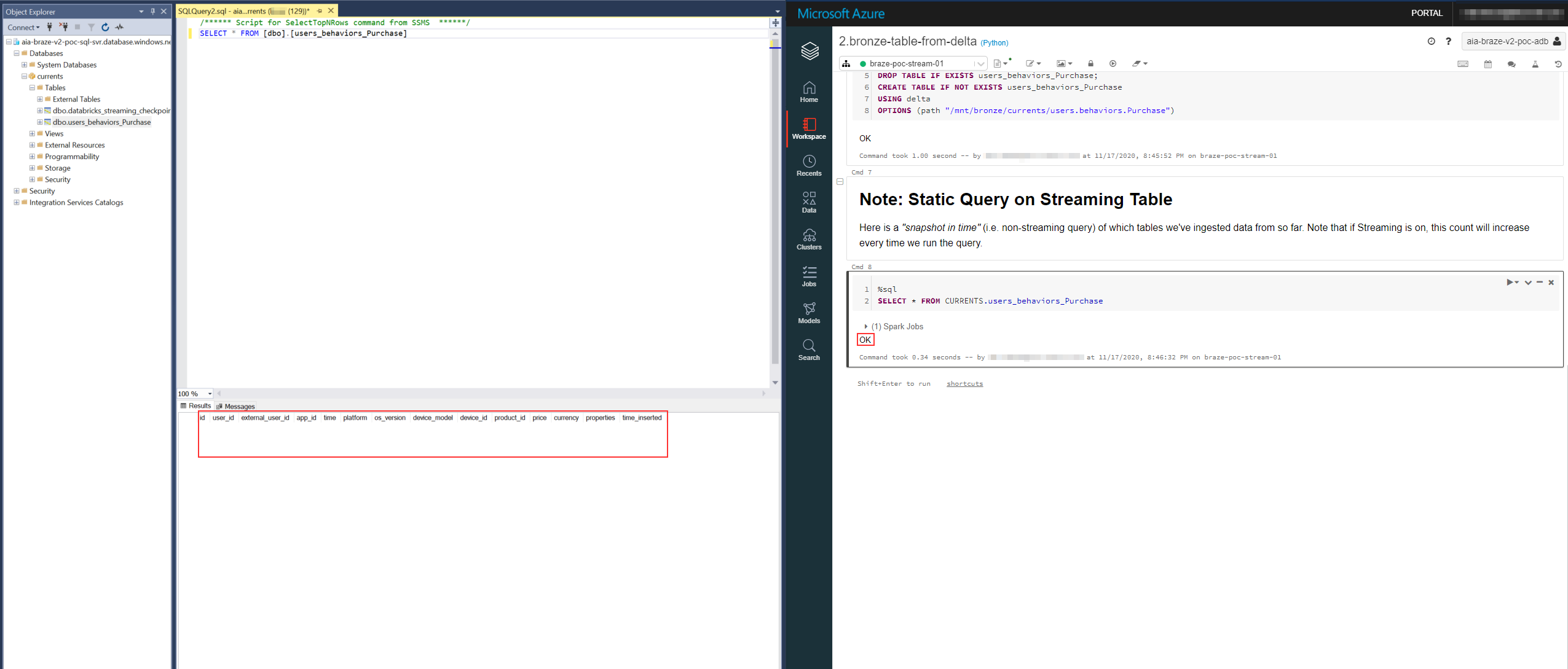
We kick off our Streams.
We drop our first file in our landing container at ../event_type=users.behaviors.Purchase/date=2020-11-16-10/:

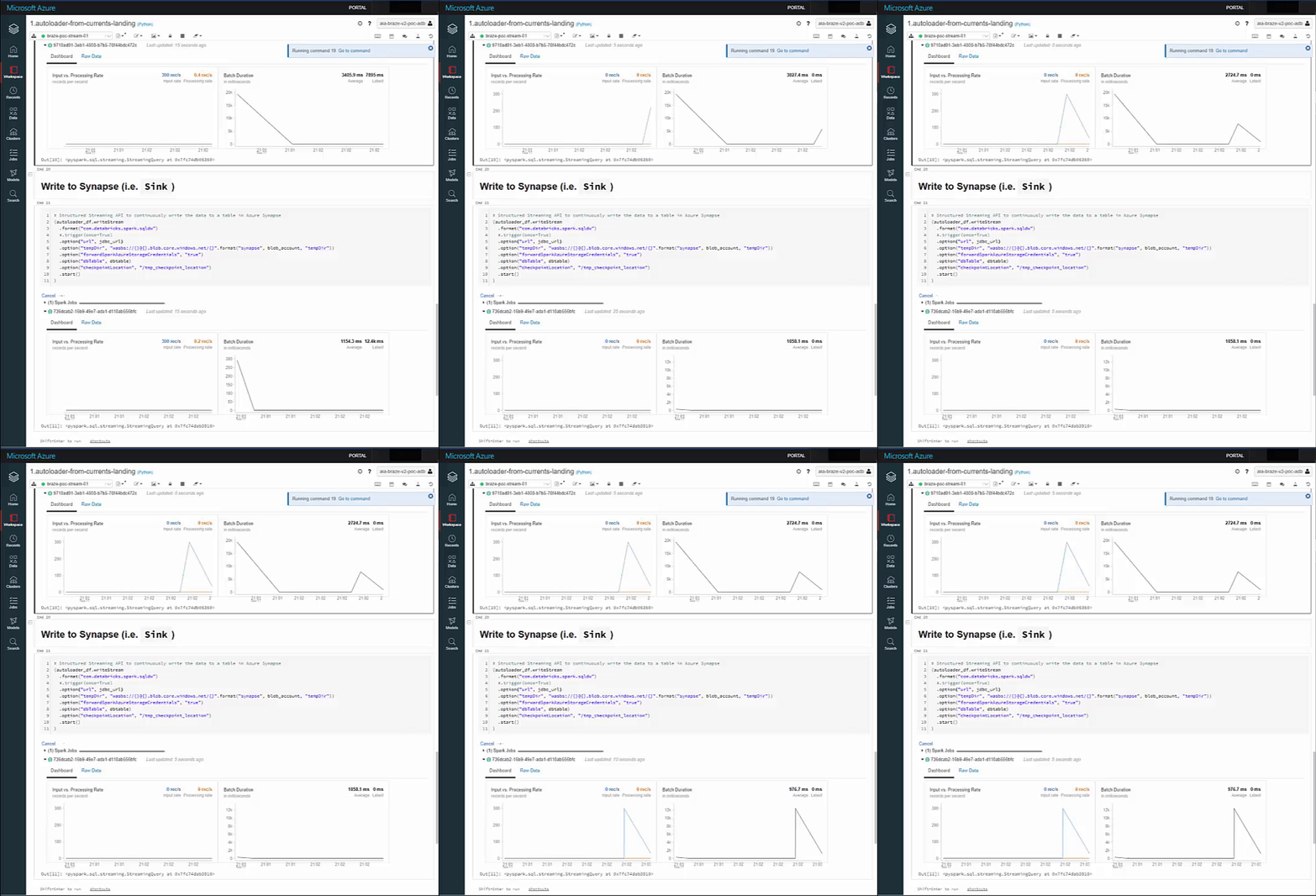
Our Stream spikes on both sinks:
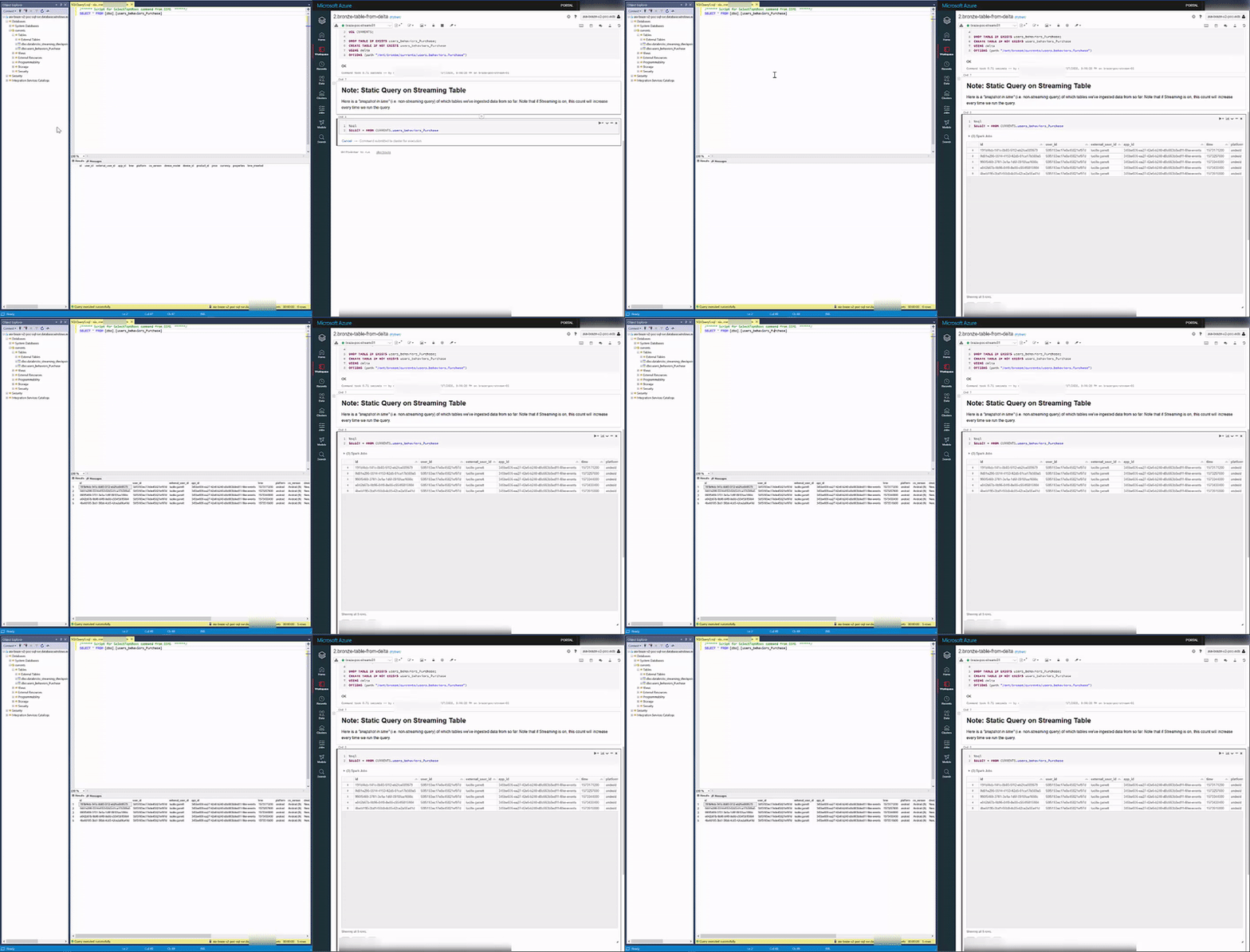
And our Delta and Synapse Tables both have the data upon querying:
Wrap up
We explored the convenience of Autoloader in setting up a low-configuration Stream Ingestion pipeline - demonstrated with Braze's Currents .avro data, while leveraging the COPY command in Synapse for a hassle-free experience.
In a Production implementation, depending on the number of tables being subscribed to from Currents, a different Streaming DataFrame per table (i.e. drop location) can be setup.